Showing posts with label hardware. Show all posts

24 April 2011

What I learned about tablets

A friend of mine recently asked me where I worked. I said either at home or in the office and off-handedly commented that if I had a tablet, I could work in other places like libraries or coffee shops.

I've thought about getting a tablet now and then, but I never read about anything that seemed truly appealing. But I keep coming back to tablets because as great as pen and paper is (fast, cheap, light and portable), you can't index and organize paper anywhere as well as you can with digital media. Yes, you can put your paper in tabbed binders, but digital data can be tagged and is searchable. I thought about scanning paper documents, but these scanned documents are large in file size and no one has solved the problem of recognizing handwriting in images so the scanned document can't be resolved into text and searched. (In case you're wondering, OCR is for properly printed characters.)

This is what I would want in a tablet:
  • Lightweight (under 2 pounds)
  • Storage space of at least 20 GB for my electronic books, notes, files
  • Color screen with large viewing angle
  • Fast internet connectivity
  • Pen input for taking notes
I'd like to be able to just throw the tablet in my bag and carry it without being burdened by its weight. I'd like to be able to carry around my library of electronic files (pdf, djvu, etc) and have speedy access to the internet, so I don't have to bring a heavy, expensive laptop to the library or coffee shop. I'd like to write down thoughts and ideas in a digital notebook.

I didn't realize how hot the tablet market has become. A little curiosity resulted in me getting into some seriously deep Internet research. I ended up learning a lot about tablets, pen input, and Android. I thought I'd write it all up before I forget.

Pen input

The most significant dividing line for tablets right now is pen input.

Tablet PCs are designed to use pens as the main form of input. The older tablet PCs use resistive screens which really need a stylus and don't respond very well to touch. Some of the newer tablet PCs support multi-touch by using a capacitive screen. The best tablet PCs use an active digitizer which allows for a smooth and precise writing experience closer to writing with pen and paper.

The Android tablets and iPad use a capacitive touch screen which is great for finger gestures, but non-ideal for pen input. You can use a passive, capacitive stylus, but writing with one is like using the eraser on the back of a pencil. It's very crude. However, companies are starting to think about focusing on pen input. The HTC Flyer is the very first Android tablet that will come with an active digitizer made by N-Trig.

For precise input, the general consensus is that you must have an active digitizer which means the tablet needs to be designed for pen input. Artists won't use anything besides an active digitizer. The two main companies currently making active digitizers are Wacom and N-Trig. People say that Wacom is the best, but N-Trig is getting better.

For satisfactory pen input, you not only need good hardware but also good software. Most people who want a tablet are interested in using it for work purposes: business people, scientists, artists, architects, etc. It seems to me that pen tablets are a niche market. No wonder Apple had no interest in making a tablet with pen input.

People who are interested in taking handwritten notes and storing them in an organized, searchable fashion will want Microsoft OneNote software. This program allows the user to mix handwriting input with other files, typewritten text, etc in an endless page and organize the pages into notebooks. OneNote uses the excellent Windows handwriting recognition software and can recognize your handwriting in real-time. It can convert your handwriting to text, or you can leave your notes handwritten and search them later. Unfortunately, OneNote is only a Windows program, so you can only use it if you have a Windows-based tablet. The current Windows tablet PCs are heavy and have poor battery life because the Windows OS was designed for desktop machines and not little tablets. Evernote is a popular alternative to OneNote, but people say it's not quite as good.

Artists will want to use drawing and painting programs like ArtRage. (I'm no artist, so I don't know what is the best software.) Most of the great software can only be run on desktop operating systems like Windows and Mac OS X.

So the take home message is that if you want a tablet to do actual work, you have to get a tablet PC that runs Windows. The current favorite is the Asus Eee Slate EP121, which has a powerful Intel i5 dual core CPU, runs Windows 7, and weighs about 2.5 lb. The main drawback is its short battery life: 3-4 hours. If you don't mind having an old model, many rave about the HP TC1100 tablet. It uses a Wacom digitizer, runs Windows XP, weighs about 3.3 lb, and has a detachable keyboard. Without the keyboard, it becomes a slate.

The Asus Eee Note EA800 is an intriguing possibility. The slate uses active digitizer pen input, only weighs 520g, has a long battery life (~ 8 hours), and will be cheap: around $200. The reason it is able to achieve all these features is because it uses Linux and has a monochrome LCD screen which is not backlit. Unfortunately, the Linux OS means you can't use OneNote though the Eee Note allows you to upload your notes to Evernote via internet. However, people report that the Wifi connectivity is really bad. The fact that the LCD screen is not backlit means that it is very hard to see in dark environments, for example, when people are giving presentations with the lights off. So the Asus Eee Note is probably not going to work for most people. The good news is that Asus seems to be working hard to re-vitalize the pen tablet market and may come out with something exciting in the next generation. Reportedly they are working on a color version of the Eee Note.

Sorry, Mac users, it is doubtful that Apple will directly support pen input, and as I mentioned earlier, you really need an active digitizer for good pen input. This is a hardware problem. However, there are some nice iPad drawing apps out like Penultimate, and Wacom is releasing a capacitive stylus (with 6 mm resolution which is supposedly the limit of the iPad's sensitivity -- compare that to a real pen which is something like 1 mm). If pen tablets become popular enough, maybe Apple will become interested. Finally, I should mention that Microsoft OneNote is not available on the Mac, though Evernote supports OS X.

[Sidenote: If you look at forums about pen input on tablets, people call writing on tablets "inking."]

Tablets without pen input (iPad and Android)

If you are willing to live without pen input, you have a lot more options like the iPad and Android tablets (with the exception of the HTC Flyer mentioned earlier). Due to the success of the iPad, there are a flurry of Android tablets coming out this year. These tablets are all very good when it comes to touch screen manipulation, speed, and internet connectivity with good battery life because they use operating systems that are derived from smartphone OS's.

Three different tablet sizes are being pushed right now: 7", 8.9", and 10". The iPad uses the 10" form factor which is best for multimedia like video and photos. People who prefer a large viewing area will like this form factor, though it starts to get a little heavy. The lightest 10" tablets are around 1.3 lb. The 7" form factor is great for reading ebooks. A lot of people like the lightness and the fact that you can hold 7" tablets in one hand for an appreciable time. The Nook Color has a 7" screen. Most tablets are currently either 7" or 10". A few companies are testing the market for midsize tablets with an 8.9" form factor. This might be a great compromise between viewing area and portability.

For the iPad and Android tablets, the hardware is already very good. The tablets are light and have plenty of processing power. The screens look beautiful and many of them incorporate large angle viewing technology.

The potential of Android tablets is currently restricted by the software. Google designed a tablet-specific operating system called Android 3.0 (Honeycomb). But it's so new and Apple is so dominant in the marketplace that there are few developers for it. Honeycomb is still kind of buggy and there are few apps. Hopefully, in a year, the situation will change.

You could get the iPad, but I'm not a fan of Apple's censorship and closed-source model. It's true that Apple technology is very good, but when you buy an Apple product, you are buying into Apple's culture and dogma. I don't think of daily computing as a religious experience; I think of the computer as a tool that allows for swapping hardware and tinkering with softare. Also, Apple currently doesn't support Flash on the iOS, the operating system used on the iPhone and iPad, so you won't be able to watch most Internet videos (including Hulu and YouTube) on the iPad.

I think if you're willing to wait, the Android tablets will have better hardware and more innovative features, not to mention a microSD or SD card slot for extra capacity and convenience (the iPad doesn't have any external storage options). There are already Android tablets designed to have a removable battery (Toshiba tablet), a detachable keyboard (ASUS Eee Pad Transformer), slideout keyboard (Asus Eee Pad Slider), or pen input (HTC Flyer). The competition among Android tablets will result in dramatic price drops, too.

The coolest thing about Android tablets is their modding potential. There is a huge developer community hacking and tinkering with the Android OS. It is well-known that you can "jailbreak" the iPhone/iTouch and "root" Android smartphones. A couple Android tablets have been well-hacked. The 7" Nook Color and the 10" Viewsonic G Tablet run Android 2.x off the shelf. Both devices are easily rooted and flashed with custom ROMs (essentially operating systems). ["Rooting" means to gain administrative access to a device so you can run anything on it. "Flashing" means changing the read-only-memory (ROM) on the device. This is dangerous because all the low level operations and booting is controlled by this memory. If you mess up, you might "brick" the device, i.e. render it un-operable without any way to restore it to working condition.]

The Nook Color ad G Tablet were targeted by the developer community because they are relatively cheap for Android tablets. With the right software, the Nook Color can be upgraded from Android 2.1 (Eclair) to Android 2.3 (Gingerbread) and overclocked from 800 MHz to 1.1 GHz. The Bluetooth capability of the tablet can also be unlocked.

Essentially, you can buy the Nook Color for $250 and upgrade it to be comparable to the Samsung Galaxy Tab. When you consider that the Galaxy Tab used to cost $400 with a two year data plan or $600 off-contract, this is an incredible deal, so good that if you search Google News for "rooted nook color", you will find at least a dozen articles about ordinary people with no tech-know-how rooting their Nook Colors. Well, it used to be an incredible deal. Now, there is a $350 Wifi-only version of the Galaxy Tab, so the savings isn't quite as much. You could also mod a G Tablet. I don't find that option as attractive because the G Tablet isn't supported as well among developers and because the G Tablet's screen is reportedly quite poor.

With the announcement that the 10" Acer Eee Pad Transformer will cost $400 and the Acer Iconia Tab A500 will cost $450, maybe a rooted Nook Color isn't quite as attractive as it used to be since it has a 7" screen size and only 8 GB storage (compared to 16 or 32 GB). But it's still a good deal and you have the advantage of using a mature OS like Gingerbread (Android 2.3) rather than the "beta" Honeycomb (Android 3.0). All the new Android tablets use Honeycomb and all the old ones use Android 2.1 or 2.2.

The future of tablets (?)

It will take a while for the Android tablet market to grow and mature. But I think it's a safe bet that in the near future, Honeycomb will be refined, people will develop more apps for it, and the price of Android tablets will drop substantially. In the meantime, you can get yourself a Nook Color or G Tablet, root it, and get access to the best and latest Android updates the hacker community has to offer (in contrast, retail Android devices are very slow to get updates). When your tablet becomes outdated, you'll be able to buy a new, cutting-edge device that is very satisfactory right out of the box.

Don't forget about tablet PCs and pen-based tablets. With the growing popularity of the iPad and the huge push by Android to focus on tablets, I think tablet PCs and pen-based tablets will also benefit. A much broader and mainstream audience will be exposed to tablets, the technology will improve, and people will demand more. Manufacturers will be more willing to take a chance on innovating tablets with inking capabilities.

The next few years should be exciting if you like tablets.

26 November 2010

Arcade gaming at home

I was playing Metal Slug on my Nintendo DS Lite the other day and my hands were dying from so much button pressing. I realized that what I really need is an arcade style joystick. Arcade style games aren't really made anymore, so I could install MAME emulation software on my PC to play retro games like 1942, Gauntlet, Street Fighter II, and Samurai Showdown. A good resource for anything related to building your own MAME arcade box is MAMEWorld. I found some cool stuff like playing Mahjong in MAME and even light guns for your Time Crisis fix!

I had no idea there are so much information about different types of joysticks and buttons. slagcoin has an extensive guide here. Apparently, there are three major joystick types: Happ (US), Sanwa (Japan), and Seimitsu (Japan). It's much easier to get high quality arcade parts from Japan because the arcade games are still popular there. Americans don't really play arcade games anymore. Many people buy parts and mod their own custom joysticks. That sounds like fun, but I'd like to play with some of the off-the-shelf stuff first so I can get a feel for what I like. Eventually, I'd like to do a complete arcade box build project as described in MaximumPC's article "How to Build a Kick-Ass MAME Arcade Cabinet from an Old PC."

There are few recommended off-the-shelf manufacturers.
  • Hori is the biggest game controller manufacturer and has a high quality Real Arcade Pro line.
  • MadCatz makes a Street Fighter IV FightStick Tournament Edition for PS3 and XBox 360.
  • X-Arcade makes US style arcade joysticks. They are lower quality than Hori or MadCatz but they are easy to mod and the PC board is supposedly 100% compatible with MAME.
After some cursory research, these joysticks seem good for a MAME setup:
  • Hori Real Arcade Pro VX-SA for Xbox 360. A top-of-the-line model which uses all real arcade parts and layout.
  • Hori Real Arcade Pro EX-SE for XBox 360. Another top-of-the-line model which uses all real arcade parts. It's unusual in that it uses Seimitsu parts, rather than Sanwa parts. All the other Hori and MadCatz joysticks are Sanwa.
  • X-Arcade Solo Joystick. A decent joystick but kind of pricey for the parts. I would get this one for doing some modding.
There are Hori sticks that are 1/3 cheaper, but they don't use authentic arcade buttons and the whole point was not to do any modding. I looked into MadCatz joysticks, but there wasn't much feedback on using them successfully for MAME emulation.

25 July 2008

Quantum mechanics written in Chinese

I thought I would test out my Wacom Bamboo tablet by writing "quantum mechanics" in Chinese:

13 July 2008

Practicing Chinese

世界,你好!

That was "Hello World!" in Chinese (literally: "World, hello!")

So I am trying to practice my Mandarin Chinese more often. I installed Chinese languages on my Windows XP machine. The two main options for Chinese are PRC (People's Republic of China) and Taiwan. I prefer using Taiwan because you can input the words by writing them on the "IME pad." The way this works is that you write the character stroke by stroke in a white box. This means that you need to know how to write the character and also the stroke order. So I get a chance to practice writing characters. I'm sure it's much faster to enter pinyin because you don't have to look up how to write the character and because there is AI that completes common phrases for you. But I think it's better to write the character for educational purposes. Also, I don't know pinyin (pronunciation system in Roman characters commonly used in People's Republic of China), only zhuyin (pronunciation system commonly used in Taiwan).

To help me enter characters electronically, I picked up a Wacom Bamboo tablet. It's not too expensive for a tablet input device and works pretty well for my simple purposes.

I found a nice site called Chinese-Course.com which provides vocabulary words and sentences. You can have it email you a sentence everyday, which is what I am doing. It also breaks down the sentence by definition and pronunciation for you (both pinyin and zhuyin). If you have a member subscription, you can listen to the sentence/words being read out to you.

I'm practicing my Chinese for two reasons. One, I am of Chinese descent and as I grow older, I find that I care more and more about my Chinese heritage. It's surprising to me. I feel critical of Chinese-Americans who seem to just assimilate and become "white." Of course, I don't tell them that, but I can't help feeling that way. Two, it's hard to keep in touch with my dad over the phone. I thought that if I started practicing Chinese, we can work together on it. Lately, I email my dad an elementary school level sentence and ask him if it's correct. Fun for both of us!

28 June 2008

Ferrite beads suppress high frequency noise

Via Lifehacker, I read about using ferrite beads to stop cell phones from buzzing during exposure to high frequency noise. I had no idea that ferrite beads are commonly found in USB cables.

That made me curious about ferrite beads. Since ferrite is magnetic, the bead probably acts like an inductor or an inductor in series with a resistance. Maybe with an L/R time constant?

16 August 2007

qmechanic OS 2.0 and productivity suite 1.0

About a year or two ago, I remember reading a Steve Pavlina post where he made the following analogy:
My beliefs and attitude were the operating system (OS). And my thoughts (including those which directed my actions) were software programs. The software runs on top of the OS which runs on top of the hardware.

At the time, I thought it was hilarious to think of yourself as a computer. But nowadays I take the idea more seriously.
I would say that my OS (operating system) is at version 2.0. I made it from birth through college with pretty much the same values and attitude (OS 1.0). Grad school and various life events caused upheaval (new people, new expectations, new environment, parental problems). So I was forced to "upgrade" to OS 2.0.
As for software, I would consider my work on lifehacks to be "productivity suite 1.0". I'm pretty pleased with it in general. My one complaint is that I haven't found a good bedtime routine which helps me fall asleep. I guess I will work on fixing that in version 1.x!

Current wakeup system

I like to wakeup to my own music, rather than a buzzer or radio station. For a while, I would plug my stereo into my computer and use WinAlarm (a Winamp plug-in) to wake me up. The trouble was that I'd have to leave my computer on overnight and as you might know, prolonged uptime is bad for hard drive life. Then I switched to using a iHome iPod clock radio. This idea solved the problem of having an alarm independent of my computer. However, the sound quality on the iHome was terrible compared to my stereo. And I couldn't plug my stereo into the iHome clock.

So now I have finally settled on a system that works pretty well. I setup a calendar reminder every night to plug my stereo into an 2 GB iPod Nano (which I was formerly using with the iHome clock). As a backup, I also have a Sony clock radio which I use as a backup alarm. The Sony clock has nice big green digits which makes it a great clock for my room, too.

05 August 2007

My attempts at cord and cable management

A friend of mine mentioned reading about cord/cable management recently. Spurred by this conversation, I decided to organize my cords over the weekend.

One method I tried was using these orange cord clamps from Home Depot. The nice thing about the clamps is that you can easily change the radius of the clamp. And they are easy to remove unlike cable zip ties.


I also used grocery ties (in green) for a tighter fit. They are still easily removable which is nice.


For more permanent cabling arrangements, I used cable zip ties (they look like this). The drawback of zip ties is that you have to cut them off with scissors and they are not reusable. There are three power cords in the picture: laptop, speakers, and external hard drive. You can also see a coiled gray ethernet cord.


Here's one more example. In the picture, you see cords for refrigerator, extension cord, surge protector, and lamp.

11 February 2007

My backup/maintenance solution

I think I've finally figured out a good plan to maintain my computer and digital information.
  1. Compressed backup of home computer at beginning of month onto a portable external hard drive (Seagate 100 GB notebook drive). Rotate several backup copies on the drive, deleting the oldest copy before writing a new copy. Bring drive home to do backup, then take drive off-site to another location away from home.
  2. Compressed backup of home computer mid-month on a large-capacity external hard drive at home. Rotate several backup copies on the drive, deleting the oldest copy before writing a new copy. I currently have a rather small external hard drive and I'm thinking of replacing it with a Western Digital 500 GB My Book.
  3. Once a week: run anti-virus and spyware programs and use rsync to a) backup/update work folders on a work server, b) backup/update pine mbox files from my university email account onto my home computer, and c) backup/update an uncompressed mirror of my home computer on the large-capacity external hard drive. I use ssh encryption when connecting to remote computers. The anti-virus/spyware check is a set of automated tasks (I just leave the computer on). The rsync process is handled by running a Windows batch file which calls a Cygwin shell script. Unfortunately, I can't automate this process because rsync needs my password to connect to remote servers; I'd rather not use SSH keys for hands-off password-less login.
  4. Every two weeks, backup Gmail via POP access to Thunderbird and also backup information on del.icio.us, Backpack, and Yahoo Calendar.
  5. Once a month, run ccleaner, chkdsk, and O&O defrag. I run chkdsk with a Windows batch file and manually run ccleaner and defrag (I like to do it by hand since they are sensitive tasks).

20 January 2007

Tech: Subversion, WinSCP, and DVD backup

I wanted to share some software knowledge I've gained recently.

First, I learned how to use Subversion. It is a really nice piece of software, open source, multi-platform and supposedly better than CVS. On Windows, I use the GUI client Tortoise SVN which emulates subversion commands in the explorer window.

Second, I can finally do file synchronization (at least between a local Windows machine and a remote machine). The SFTP client, WinSCP, has synchronization built-in. It's pretty self-explanatory and there is the nice option for previewing the synchronization and tweaking it before it occurs.

I also learned how to DVD backup (note: I am backing up DVDs I own, not copying DVDs and distributing them) by reading this concise tutorial. You can make a backup DVD of your original or even save the original .iso file on your hard drive. The only tricky issues are 1) (possibly) needing to break DVD encryption and 2) (possibly) needing to compress the image of the original so it can fit on a DVD-R. Note the last problem might be solved if you use a higher capacity disc like HD-DVD/Blu-Ray and/or dual-layer.

12 January 2007

Tech: Fujitsu ScanSnap

From reviews, the Fujitsu ScanSnap sounds like a really cool scanner. It's duplexing and sheetfed, but there's no flatbed option.

09 January 2007

Testing the Nintendo Wii

I decided to visit the Nintendo World Store again -- so that I could try out the new Wii system!

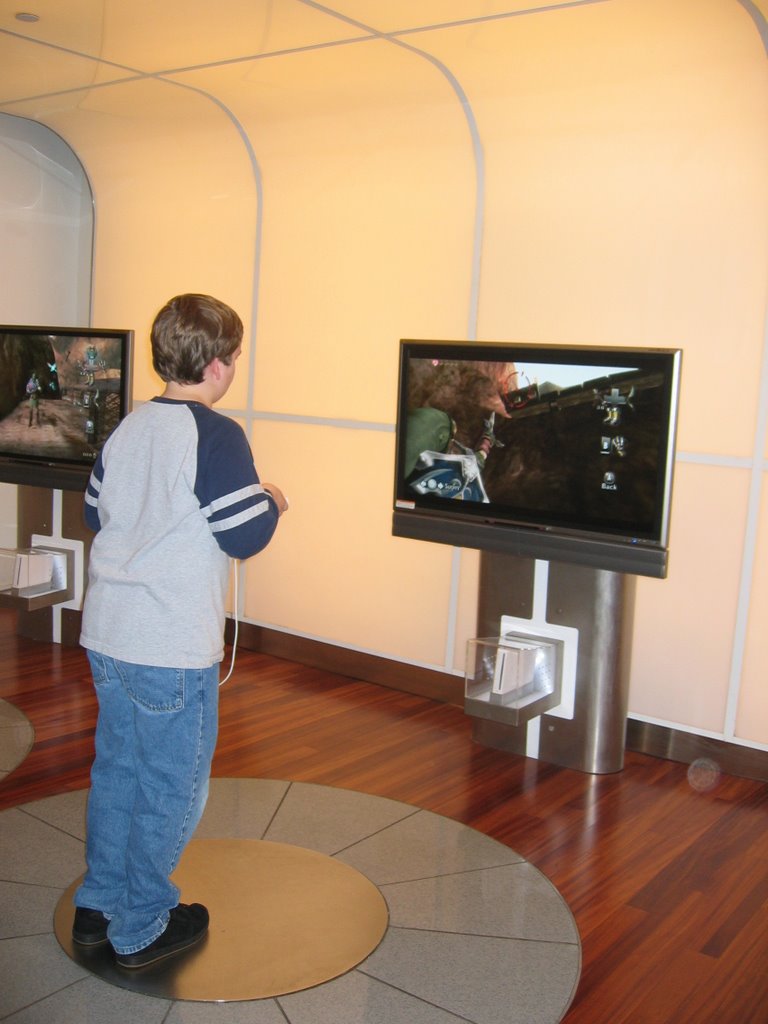
First, I tried out the Wii controller on the Legend of Zelda: Twilight Princess game. It was pretty intuitive, but it takes some practice. I only got a ten minute session in which I tried fishing, drawing a bow, shooting a clawshot, and swinging Link's sword. The fishing was kind of tricky; I didn't figure that one out. The rest of the motions were pretty easy to perform. For example, to swing the sword, you whip the remote (will that cause RSI after hours of play?) and to do a spin attack, you shake the nunchuck. To make Link walk, you just use the analog stick on the nunchuck (the same as using the analog stick on a traditional controller). I had trouble getting the red crosshair to show up when I wanted to draw the bow or shoot the clawshot. An employee told me that problem is that the sensor bar was too low and that he complained to his boss about it. Unfortunately, I forgot to take a picture of myself playing the game, but here's a photo of a boy aiming the clawshot.


Then I headed over to another section of store where they were demoing the Wii Sports game. In the main menu, you can choose from five sports: baseball, tennis, bowling, boxing, and golf. You can also pick an avatar for yourself (which Nintendo calls a "Mii" -- ha ha).

I watched a woman play tennis for a little while. She swung the remote like a tennis racket to simulate hitting the ball.


Golf and bowling sounded boring, so I opted for ten minutes of boxing.


The controller motions were extremely intuitive, fluid, and fun to use. You hold the nunchuck and remote in each hand as if they were boxing gloves. You punch with them in the air to hit your opponent. To protect yourself, you draw the nunchuck and remote together (just like blocking punches in real boxing). Here I am playing.


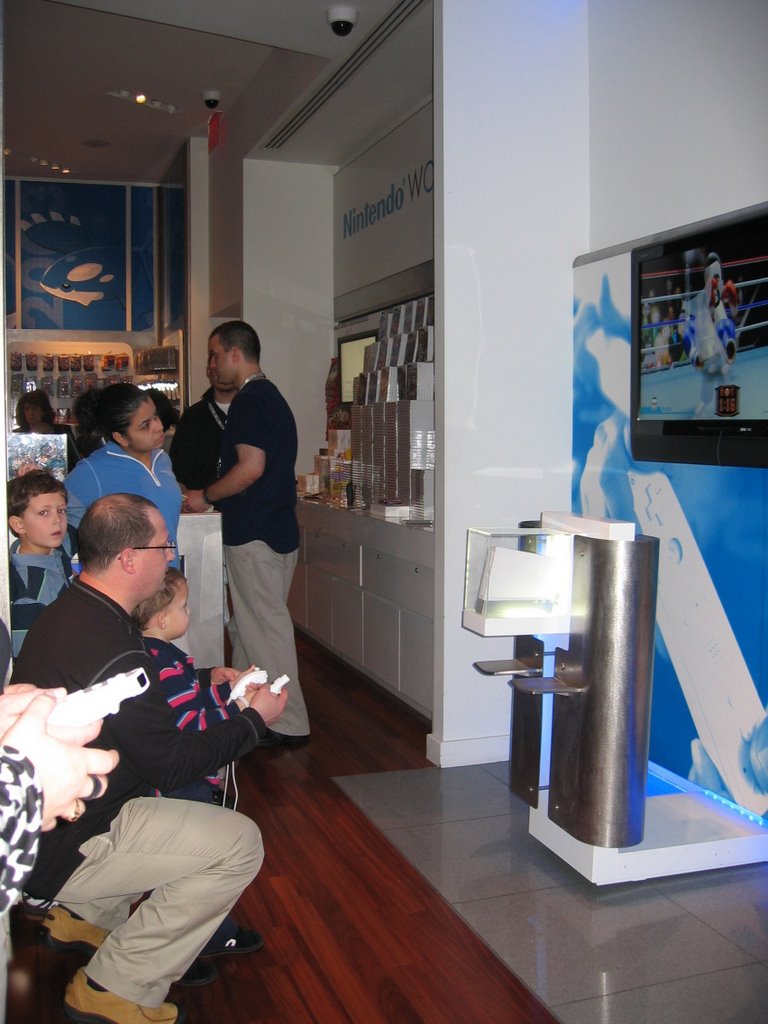
Here's a little boy playing the boxing game with the help of an adult (his father?).


I only played twenty minutes on two Wii games, but I came away with a very favorable impression. The controller is easy to use and while it didn't blow me away, it does bring a refreshing, new perspective to the video game world.

01 January 2007

Ergonomic input devices recommended by ExtremeTech

I read some reviews at ExtremeTech about keyboards and mice. They recommend the SafeType Keyboard for ergonomic keyboarding. Their recommendations for ergonomic mice are the Zero Tension Mouse and the Quill Mouse (renamed to Aerobic Mouse?). The principle behind all of these devices is vertical positioning of the hand. That seems realistic for mice, but can anyone type with their hand in a vertical alignment?! ExtremeTech claims it's possible after a week or so of practice.

02 July 2006

Tech: Digital pen

An alternative to tablet PCs is the digital pen, featured in a recent New York Times article.

12 June 2006

Physicists discuss tablet PCs

Following up on my previous mention of tablet PCs, Dave Bacon and Gordon Watts have posted blog entries describing their experiences with tablet PCs. It sounds like tablet PCs are a very neat tool, but not quite refined enough yet for mainstream use.

25 May 2006

Tech: Wacom tablet

If you don't like the mouse, an alternative is the Wacom tablet. I'd like to try one someday.

09 May 2006

Tech: Motion LE 1600 Tablet PC

Being the organizational freak that I am, it would be wonderful to take notes pen-and-paper style (simple, robust) and be able to refer to those notes electronically (the power of search!) Ideally, you would have software that reads your handwriting and converts it to electronic format (even mathematical symbols). I guess an alternative is to LaTeX your notes at the speed of light, but I don't have enough talent and attention to do that.

One neat tool out there is the Tablet PC. I like the idea of a slate tablet (as opposed to a so-called "convertible" tablet that tries to be both an ultraportable laptop and a tablet). It would be nice to try the Motion LE 1600. If only it wasn't $2000.

Link of the day: PBS Nerd TV

Via Lifehacker: Nerd TV. It's a show where they interview nerds, in particular famous people from the computer/electronic industry.

01 April 2006

KVM switches

A neat idea I found about today in Lifehacker.com: KVM switches. KVM means "Keyboard Video Mouse". It's a way you can control multiple computers with a single keyboard, monitor, and mouse.

If you use multiple computers, it's a good way to save money, especially if you have fancy 20"+ LCD monitor.

22 March 2006

"Amateur" radio

I went to a ham radio club meeting today out of curiosity. At the end of the meeting, we watched a clip from the Jay Leno Show. Mr. Leno pitted two teenage text messagers (supposedly the fastest in the US) against two ham radio operators using Morse code (30-40 years of experience). The competition was to see who could send a message faster. A woman in the audience bet on the text messagers, but the Morse coders won. As Jay Leno said to the text messaging teens, "Sorry, you were beaten by 170-year-old technology."

I learned, on a more serious note, that ham radio (so-called "amateur" radio since individuals, not corporations, are the operators) has vital uses in remote areas and during disasters. In an emergency, cell phones and landlines are often jammed and the only reliable method of communication is through ham radio. Sometimes when several different emergency response teams work together (fire, police, ambulance, etc.), they solicit the help of ham radio operators to communicate between the different teams. The reason is that each team uses its own unique frequency so they need ham radio operators to set up a universal communication system.

Amateur radio operators have also campaigned against BPL (Broadband over Power Line). BPL is the idea that you can transmit broadband internet signals over power lines in RF (radio frequency). It seems like a great idea to bring broadband to rural areas, but the preliminary technology interfered with much of the RF spectrum including fire, police, and ham radio frequencies. The ARRL (American Radio Relay League) convinced the FCC (Federal Communications Commision) to ensure the protection of the RF frequency band in areas where BPL might be deployed.